PhotoCraft · Beginner
Opening and saving PSD files with PhotoCraft
What survives when you open and save Photoshop documents in PhotoCraft, how to keep layers intact, and what to watch for when sharing files with Photoshop users.
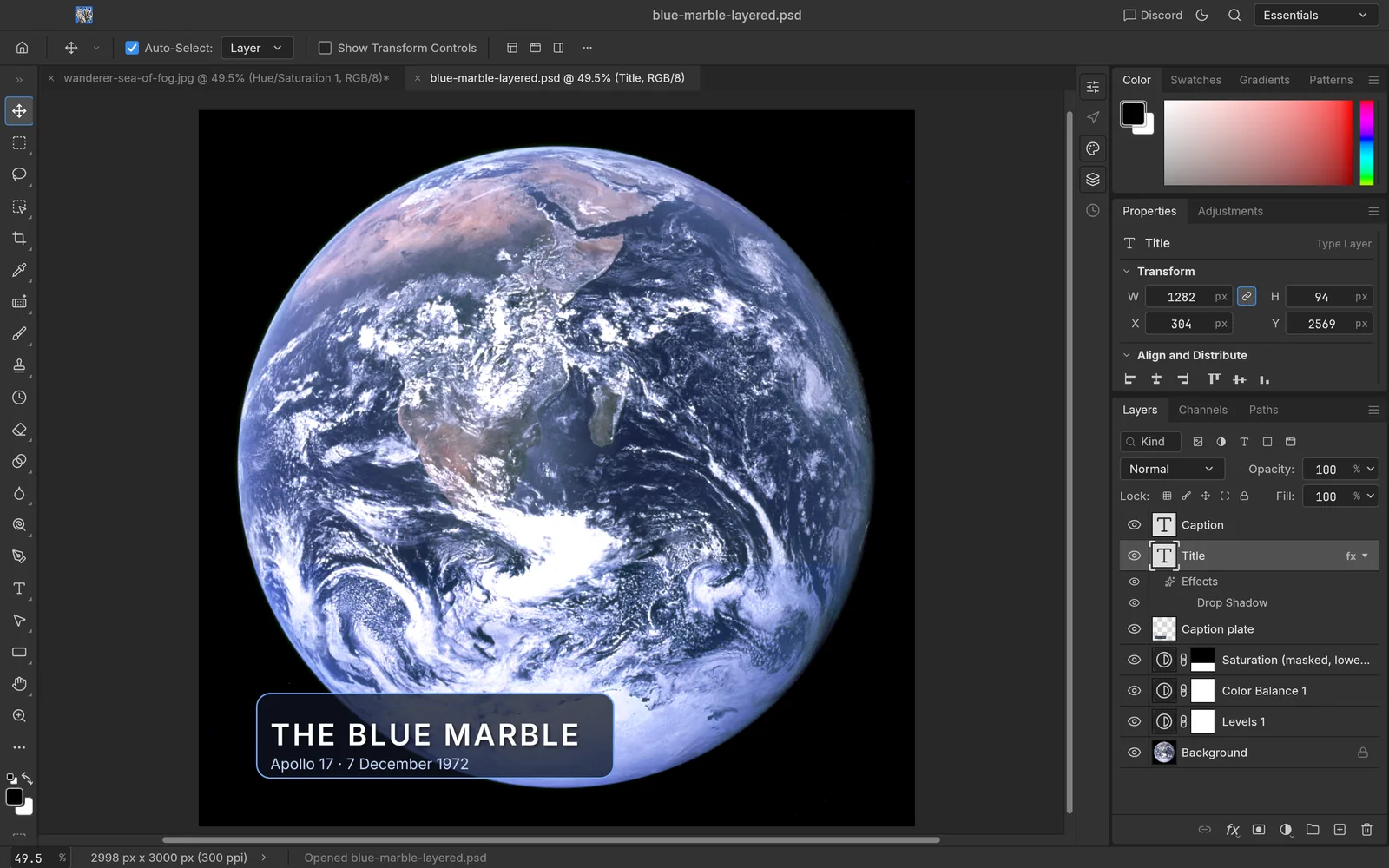
PhotoCraft reads and writes real layered PSD and PSB files, written from Adobe’s public specification. In the project’s own tests, opening and re-saving keeps the render of 307 of the 309 files in the psd-tools test set. Here is what that looks like in practice.
Open a PSD
Use File › Open or drop the file on the window. We tested a 42 MB, 7-layer PSD: it opened in about 0.1 seconds on an M3 Pro MacBook Pro, with no import warnings.
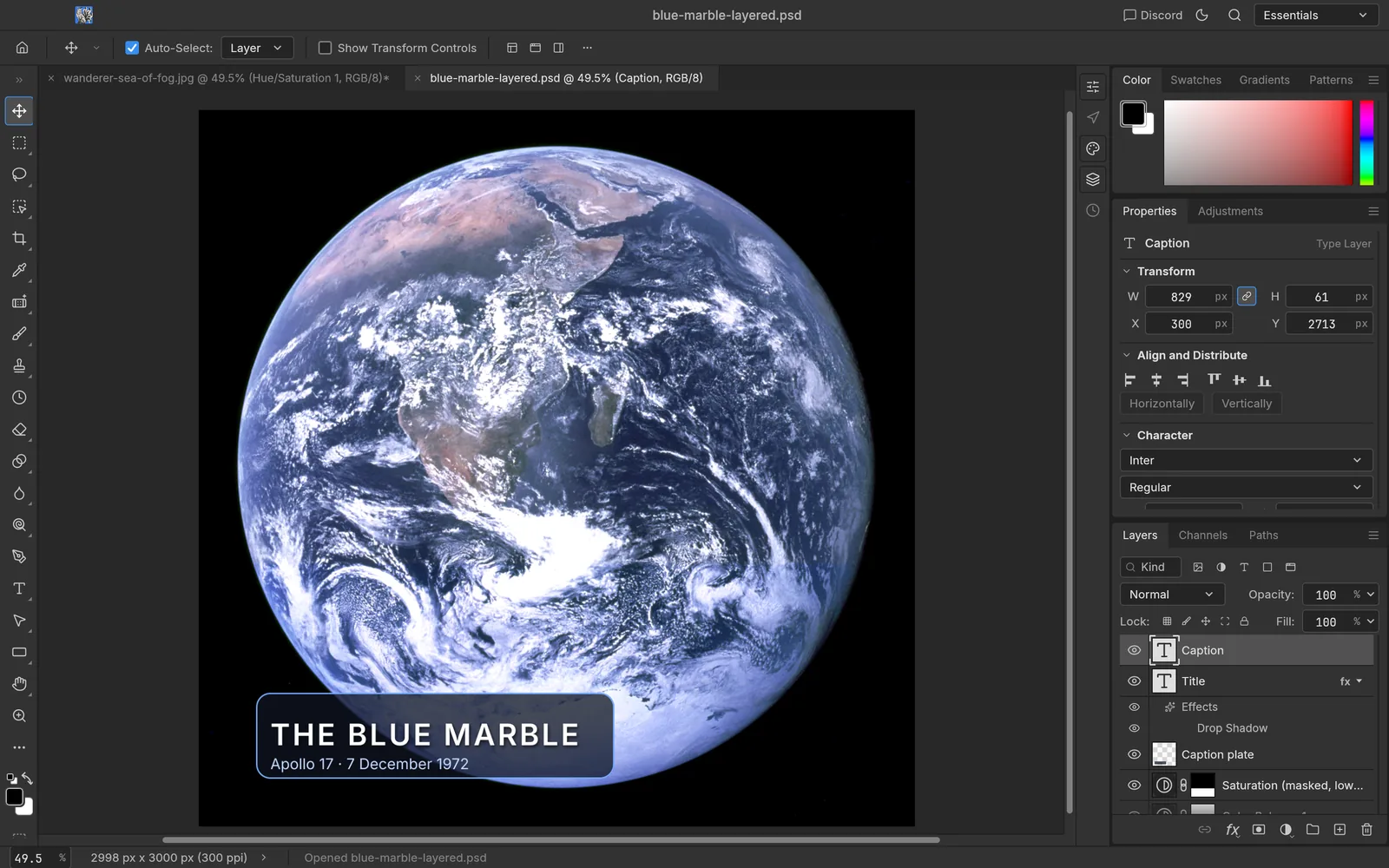
Check the layers
Everything came through as editable layers: two type layers (one with a Drop Shadow layer style), a shape layer, three adjustment layers with masks, and the Background.
PhotoCraft also opens PSB (large documents), 16- and 32-bit files, and CMYK and Lab documents. Anything it doesn’t model yet is carried through when you save rather than being dropped.
Save without losing layers
- File › Save writes the PSD back with its layers.
- Saving to JPEG, PNG or WebP flattens the image. PhotoCraft warns you with a notice listing what was lost:
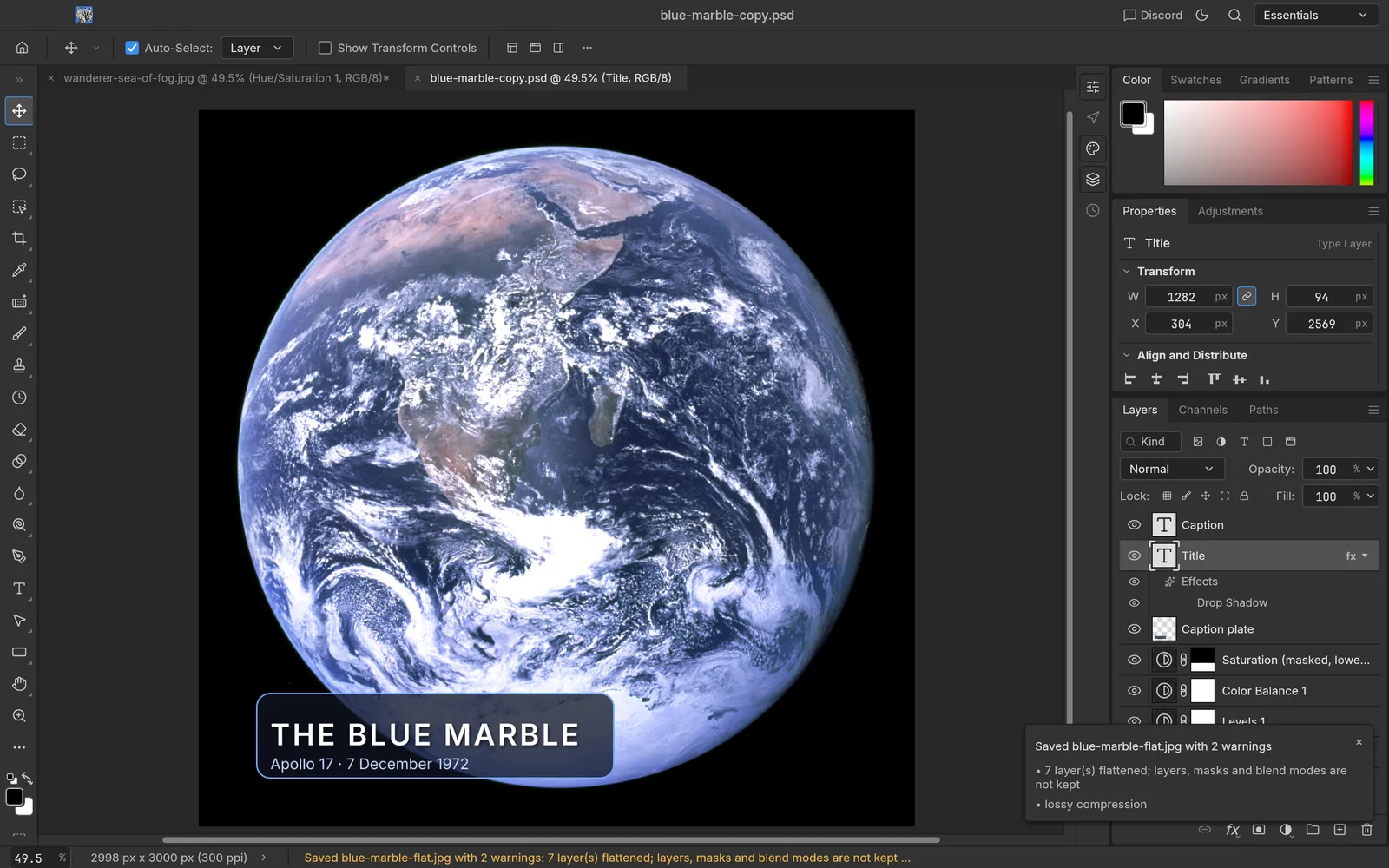
Keep a PSD (or the native .pcraft file) as your working copy and export flat files from it.
Sharing files with Photoshop users
PSD support is good but not perfect yet. The project reports that some files saved by PhotoCraft are refused by Photoshop, and a few effects re-render differently. Before you send work to a Photoshop user:
- Save a copy and reopen it in PhotoCraft to check layers and type.
- If possible, have them open it before a deadline depends on it.
- Report any file that fails on GitHub Issues, with the file if you can share it.
Other formats
Besides PSD/PSB, PhotoCraft handles layered TIFF, OpenRaster (for Krita and GIMP), Paint.NET files (read), SVG (as shape layers), Affinity documents (read only), and flat PNG, JPEG, WebP, GIF, BMP, OpenEXR and more.
Don’t have PhotoCraft yet?
Free and open source for Windows, macOS and Linux.
Artworks shown: Vincent van Gogh, Wheat Field with Cypresses (1889, The Met, CC0); Johannes Vermeer, The Milkmaid (c. 1660, Rijksmuseum); Caspar David Friedrich, Wanderer above the Sea of Fog (c. 1817); The Blue Marble (NASA, 1972); Pillars of Creation (NASA, ESA, and the Hubble Heritage Team (STScI/AURA), 2014). All public domain. Screenshots: PhotoCraft 0.7.0, captured by ArtCraft AI Guide.
All tutorials